Microsoft Flight Simulator Bottleneck — Why It’s Main-Thread Limited and How to Fix It
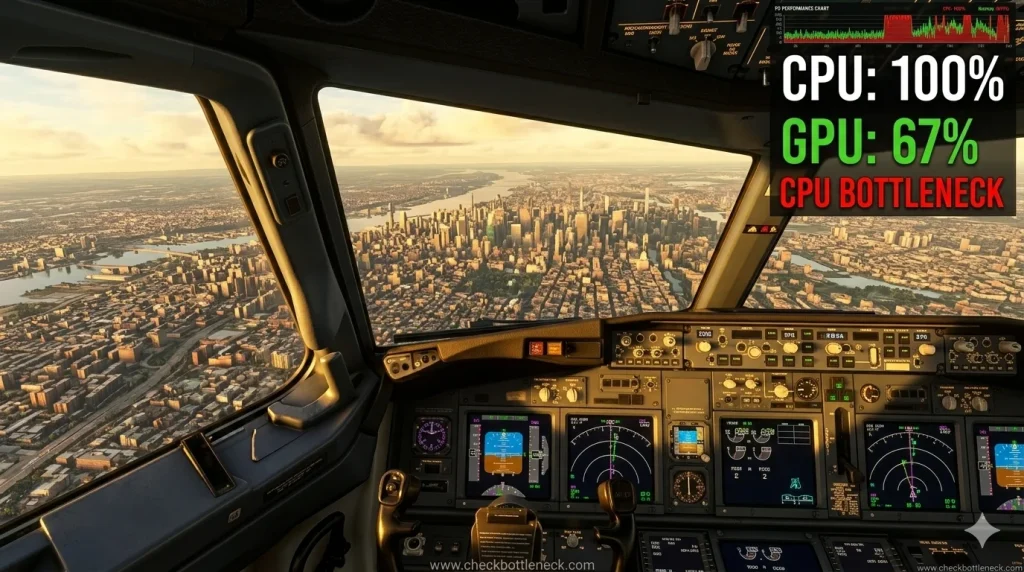
The Microsoft Flight Simulator bottleneck is unlike the bottleneck in any other game. It affects practically every PC — even flagship rigs — because MSFS is famously main-thread limited: one CPU thread prepares each frame (weather, live traffic, terrain streaming, physics), and the fastest graphics card in the world simply waits for it. This is not a flaw in your system. It is how this simulation works.
So the fix is rarely “buy a better GPU.” Diagnose first — find out whether you’re limited by the main thread or the GPU — then change only the settings that target your actual bottleneck. This guide covers the diagnosis, seven proven fixes, the best CPU choices for MSFS in 2026, and how to round out a balanced build. For a primer, see what a CPU bottleneck actually is.
Before you spend money on an upgrade: MSFS is the textbook CPU-limited game — a powerful GPU can sit half-idle behind a weak main thread. Run your exact CPU + GPU through our free bottleneck calculator to see which component holds your system back.
Why MSFS Bottlenecks Differently From Every Other Game
In most games the CPU feeds the GPU draw calls and the GPU is the limiter at high settings. MSFS inverts this: every frame, the main simulation thread processes real-world weather, live aircraft, terrain streaming and aircraft systems — much of it in a sequence that can’t be spread across more cores. When that thread can’t finish in time, frames stall no matter how much GPU headroom exists.
That’s why a 16-core workstation chip doesn’t automatically beat a fast 8-core gaming chip here, and why dropping resolution sometimes barely changes frame rate. If lowering resolution hardly helps, you’re seeing classic CPU bottleneck symptoms — the GPU is waiting on the CPU.
MSFS 2020 vs MSFS 2024 — What Changed
MSFS 2024 spreads simulation work across cores better than 2020 and streams far more scenery over your connection. But the main thread still dominates the frame budget, and large-L3-cache CPUs still hold a clear edge because the sim constantly streams world data through the cache.
Diagnose First: Are You “Limited by MainThread” or GPU?
Guessing wastes time and degrades visuals for nothing. MSFS names your limiter for you — the whole diagnosis takes two minutes.
How to Read the FPS Counter
- Options > General > Developers — turn Developer Mode ON.
- From the Developer menu bar: Options > Display FPS.
- Fly a demanding spot (detailed airport, cockpit view facing the terminal). The top line reports “Limited by MainThread” or “Limited by GPU” in real time.
- Confirmation test: halve render scaling for one flight. Big frame-rate jump = GPU limit. Barely moves = main-thread limit — no GPU-side setting will fix it.
Symptom Quick-Reference
| Symptom | Likely cause | First check |
|---|---|---|
| Low FPS at big airports/cities, fine in cruise | MainThread (CPU) | Lower Terrain LOD and traffic |
| Low FPS everywhere, GPU usage near max | GPU limit | Lower render scaling, clouds, shadows |
| Low FPS, GPU usage well below max | MainThread (CPU) | TLOD + traffic reduction |
| Sharp pauses on approach or when panning | Streaming, VRAM, cache, add-ons | Rolling cache, Community folder test |
| Blurry textures, buildings pop in late | Network / photogrammetry | Test with photogrammetry disabled |
| High FPS but jerky, uneven motion | Frame pacing / stacked limiters | One frame cap at a sustainable rate |
7 Fixes for a Microsoft Flight Simulator Bottleneck
Match the fix to your diagnosis — CPU-side fixes for a MainThread limit, GPU-side for a GPU limit. For fixes beyond MSFS, see our general CPU bottleneck fixes.
- Lower Terrain LOD and Object LOD (CPU-side). The two most CPU-intensive settings in the sim. Terrain LOD 100–150 and Object LOD ~100 suit most systems; Ultra draw distances hammer the main thread for little visual gain.
- Cut AI, live and multiplayer traffic (CPU-side). Traffic is one of the biggest contributors to the MSFS CPU bottleneck. Turn sliders down and enable Use Generic Plane Models — a huge per-aircraft CPU saving at busy hubs.
- Reduce glass cockpit refresh rate (CPU-side). Complex airliners redraw avionics constantly. Medium or Low is nearly invisible in normal flying and unloads the main thread.
- Enable DLSS or FSR in Quality mode (GPU-side). The single biggest win when the GPU is the limiter, with minimal visual loss. It does not fix a MainThread bottleneck.
- Rebuild the rolling cache; keep the sim on NVMe (streaming). A corrupted rolling cache is a classic cause of approach stutters — delete and recreate it via Options > General > Data. Keep the sim on an NVMe SSD: terrain streaming over a hard drive causes pop-in and spikes no GPU can fix.
- Stabilize the platform (CPU-side). Enable XMP/EXPO in BIOS — memory bandwidth matters more in MSFS than almost any other game. Clean-install your GPU driver, use the High Performance power plan, and disable overlays (GeForce Experience, Discord, Xbox Game Bar) while troubleshooting.
- Cap the frame rate for stable pacing. A locked, sustainable rate feels far smoother than swings between high and low. Cap at what your system holds during approaches, not cruise — and use only one limiter, never several stacked.
Balanced tuning: drop all CPU-side settings to minimum, raise GPU-side settings until the counter reads “Limited by GPU” at your target frame rate, then raise Terrain LOD until it flickers between GPU and MainThread. That flicker point is your sweet spot.
Stutter Is Not the Same as Low FPS
Low average frame rate and stuttering need different fixes:
- VRAM exhaustion: high-resolution add-on textures can fill video memory, causing severe pauses when changing views at detailed airports. Lower texture resolution first.
- Corrupted cache: rolling and shader caches degrade across updates. Rebuild them if stuttering appeared suddenly after a sim or driver update.
- Network/streaming: MSFS 2024 streams far more of the world than 2020, so connection stability matters more than raw speed. Test with photogrammetry off; if it smooths out, suspect packet loss or an overloaded server region — use a wired connection and a lower-ping server.
- Add-on conflicts: payware aircraft and scenery each add CPU, GPU and VRAM load. Test with the Community folder temporarily emptied: if performance returns, reintroduce add-ons one at a time.
The Best CPU for MSFS in 2026
MSFS diverges from generic gaming advice here: cache beats core count. The sim’s constant streaming of terrain, traffic and weather rewards very large L3 cache — which is why AMD’s X3D chips are the consensus pick across independent testing and the flight-sim community.
- Best overall: AMD Ryzen 7 9800X3D. Its stacked 96MB of 3D V-Cache feeds the main thread’s streaming workload better than any other chip, with the most consistent frame times over busy airports.
- Best value: AMD Ryzen 7 7800X3D. Still a superb MSFS performer at a lower price — a great match for upper-mid-range GPUs, as in our RTX 4080 + Ryzen 7 7800X3D pairing analysis.
- Intel alternative: Core Ultra 9 285K. A capable all-rounder that trails the X3D chips in MSFS specifically. Choose it only if the same machine also does heavy productivity work, where its strengths lie.
One honest caveat: no consumer CPU fully eliminates the MSFS bottleneck. Even the best chip here will show “Limited by MainThread” at a packed hub with everything maxed — the goal is the smoothest experience, not the absence of a limiter.
GPU, RAM and Storage: Completing a Balanced MSFS Build
- GPU: once the CPU side is tamed, the GPU sets your resolution and settings ceiling. Favor 12GB+ of VRAM — MSFS texture streaming punishes 8GB cards at detailed airports. See GPU-side limits for the general picture.
- Frame generation: DLSS 3/4 frame generation (RTX 40-series and newer) smooths camera motion, but doesn’t raise the sim’s underlying update rate and can add input latency. It shines only on a stable base frame rate.
- RAM: 32GB of fast DDR5 with XMP/EXPO enabled is the realistic minimum. 64GB earns its keep with payware airliners + complex scenery + live weather and traffic — one of the few games where the jump is genuinely noticeable.
- Storage: an NVMe SSD is effectively mandatory — the sim streams the planet as you fly, and slow storage means pop-in and frame-time spikes.
- Internet: MSFS 2024’s streaming-heavy design wants a stable 50 Mbps-class connection — low packet loss and low ping to your server region beat headline speed.
MSFS Bottleneck Diagnosis Checklist
Run this repeatable protocol before changing anything — it separates a true hardware bottleneck from a settings, cache or network problem:
- Fly the same 5-minute test for every change: default aircraft, one detailed airport, overcast preset, cockpit view facing the terminal.
- Note what the FPS display reports — MainThread or GPU — and whether GPU usage sits well below maximum.
- Halve render scaling for one test flight: big improvement = GPU limit; little change = main-thread limit.
- Change only one setting group per test — TLOD, traffic and glass cockpit refresh for MainThread; render scale, clouds and shadows for GPU.
- Judge by smoothness during approach, not the highest FPS seen in cruise. Stable frame times beat peak frame rates.
- Only upgrade when a clean, retested baseline still shows the same limiter — and upgrade the limiting component, verified with our free bottleneck calculator.
Frequently Asked Questions
Is Microsoft Flight Simulator CPU or GPU heavy?
Both, but the CPU matters more than in most games. The main thread — weather, traffic, terrain streaming, physics — is the most common limiter, especially at busy airports. The GPU takes over at higher resolutions and render scales. The Developer Mode FPS display shows which one limits your system.
What is the best CPU for Microsoft Flight Simulator in 2026?
The AMD Ryzen 7 9800X3D — its large stacked L3 cache feeds MSFS’s constant world-streaming workload better than any other chip. The Ryzen 7 7800X3D is the best-value alternative; Intel’s Core Ultra 9 285K is a strong all-rounder but trails the X3D chips in MSFS.
Why does MSFS stutter on a high-end PC?
Stuttering on strong hardware is rarely raw performance. Usual culprits: corrupted rolling cache, VRAM exhaustion from add-on textures, network/photogrammetry streaming pauses, or an outdated Community folder add-on. Work through the checklist above before buying new hardware.
How much RAM does Microsoft Flight Simulator need?
32GB of fast DDR5 with XMP/EXPO enabled is the realistic minimum. 64GB is worth it for payware airliners with complex scenery, live weather and traffic — MSFS is one of the few games where the extra memory makes a real difference.
Does DLSS or frame generation fix an MSFS bottleneck?
Only a GPU-side one. DLSS/FSR upscaling is excellent when the GPU is the limiter but does nothing for a MainThread bottleneck. Frame generation smooths camera motion on supported cards but doesn’t raise the sim’s underlying update rate — it works best on a stable base frame rate.