Laptop Bottleneck Calculator — Check Your Mobile CPU & GPU Pairing
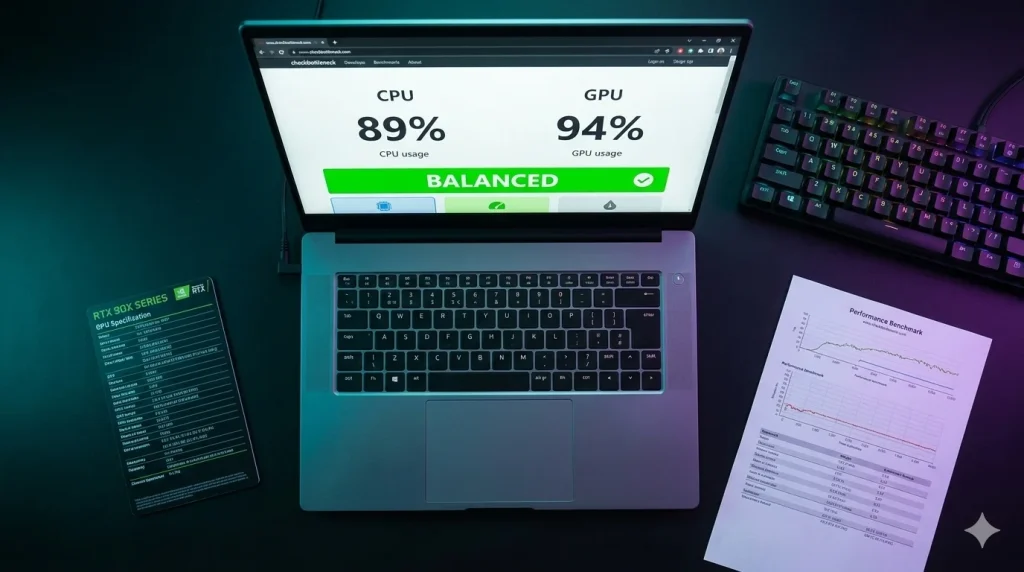
A laptop bottleneck calculator checks whether your mobile CPU and GPU are well matched — but the result is only trustworthy if it accounts for how laptops differ from desktops. Unlike a desktop, where each chip has its own power headroom, a laptop’s CPU and GPU share one thermal and power envelope, so the limiting side can shift mid-game. Learn what a bottleneck actually is, then test your exact pairing below.
👉 Check your laptop now: open the free bottleneck calculator, select your exact mobile CPU and GPU (full model name, including H/HS/HX suffixes), pick resolution and use case, and get a balance reading in about 30 seconds.
How to Use the Laptop Bottleneck Calculator
Four steps:
- Identify your exact parts. Open Device Manager or Task Manager’s Performance tab and note the full CPU and GPU names — suffixes matter (an i7-13700H and i7-13700HX are different chips). Confirm the GPU entry is your dedicated NVIDIA/AMD GPU, not integrated graphics.
- Look up your GPU wattage tier (TGP). The same “RTX 4070 Laptop GPU” ships at very different power limits per laptop model. Check the manufacturer’s spec sheet — TGP changes what the calculator result really means.
- Enter resolution and use case. On the calculator, choose your display resolution (1080p, 1440p, 4K) and workload (gaming, editing, general work) — the limiting side can flip between them.
- Read the result, then verify it live. The calculator shows which side limits the other, and by roughly how much. Cross-check with MSI Afterburner, the Xbox Game Bar widget, or Task Manager while gaming: GPU well below full usage with a maxed-out CPU means a CPU bottleneck, and vice versa.
Why Laptop Bottlenecks Work Differently Than Desktop Ones
Desktop bottleneck logic assumes each component gets its full rated power, all the time. Laptops break that assumption four ways.
One Shared Power Budget, Not Two
In a desktop, the CPU and GPU have independent power delivery. In a laptop, both typically share one envelope of roughly 75W to 150W. The power system constantly splits watts between the chips during a demanding session — neither runs at full rated performance, and the bottleneck can shift CPU-to-GPU as scenes change. A laptop result is a starting point, not a fixed verdict.
The Same GPU Name Can Mean Very Different Performance
The biggest variable in any laptop bottleneck calculation is the GPU’s wattage tier. An RTX 4060 Laptop GPU at 80W and one at 140W share the same name but sit in visibly different performance classes. A result computed against the full-power version will flatter a thin-and-light laptop. Always judge against your machine’s actual TGP — on the manufacturer’s spec page, or measured live with GPU-Z or HWiNFO.
iGPU Routing Can Fake a Bottleneck
Many gaming laptops route the dGPU’s frames through the integrated GPU before they reach the display (NVIDIA Optimus / MSHybrid). That hop adds latency and overhead, and can make a healthy pairing look bottlenecked. If your laptop has a MUX switch — or a “discrete GPU” / “Ultimate” mode in Armoury Crate, MSI Center, or Lenovo Vantage — enabling it connects the dGPU directly to the display. Also check your monitoring tool is reading the discrete GPU, not the iGPU, or the usage numbers are meaningless.
Thermals Move the Bottleneck Mid-Game
Laptops live on the edge of their cooling capacity. When the CPU or GPU hits its temperature limit, clocks drop to protect the silicon — a thermal bottleneck that appears and disappears with heat. If your GPU sits pinned at its throttle point (around 83°C on most NVIDIA laptop GPUs) while performance disappoints, the pairing isn’t the problem; the cooling is. No calculator can see this — hence the live-monitoring cross-check above.
The 7-Point Laptop Bottleneck Checklist
Run through this before trusting any bottleneck result — or disappointing benchmark — on a laptop:
- Confirm you’re monitoring the dGPU. In Afterburner or Task Manager, make sure the GPU measured is the dedicated chip, not integrated graphics — the most common false bottleneck on laptops.
- Test plugged into AC power. Battery mode caps CPU and GPU power simultaneously. A gaming laptop on battery can deliver a fraction of plugged-in performance — a “hardware bottleneck” that’s really power management.
- Enable Performance/Turbo mode. Armoury Crate, MSI Center, Lenovo Vantage, and similar tools include performance profiles that raise power limits; the default Balanced profile can quietly cap your hardware.
- Enable the MUX switch / discrete-GPU mode if present. This bypasses iGPU routing. Check your manufacturer’s tuning software; a restart is usually required.
- Check single vs dual-channel RAM. Many laptops ship with one memory stick, halving bandwidth. In CPU-bound games and at high frame rates, single-channel RAM can hide behind a “CPU bottleneck” reading.
- Look up your exact GPU wattage (TGP). Two laptops with the same GPU name can behave like different tiers — judge by wattage, not the badge.
- Watch thermals. If the GPU or CPU sits at its temperature limit with fans maxed, you’re cooling-limited — clear vents, try a cooling pad, and re-test before blaming the pairing.
Balanced Laptop CPU + GPU Pairings for 2026
You can’t swap a laptop’s CPU or GPU, so the pairing decision happens at purchase time. These are balanced starting points — qualitative, because each laptop’s TGP and cooling shift the exact balance:
| Tier | Example CPU | Example Laptop GPU | Best For |
|---|---|---|---|
| Budget gaming | Intel Core i5-13500H | RTX 4060 Laptop GPU (100W+) | 1080p high-refresh esports and AAA at tuned settings |
| Mid-range gaming | Intel Core i7-13700H / AMD Ryzen 7 7840HS | RTX 4070 Laptop GPU (115W+) | 1080p 144–240Hz and entry 1440p gaming |
| High-end gaming | Intel Core i9-13980HX / AMD Ryzen 9 7945HX | RTX 4080 Laptop GPU (150W+) | 1440p high-refresh gaming and creative work |
| Desktop replacement | Intel Core Ultra 9 185H / AMD Ryzen 9 7945HX | RTX 4090 Laptop GPU (175W) | 4K gaming and heavy rendering workloads |
Notice the wattage next to each GPU — that’s deliberate. A mid-range CPU with a low-wattage high-tier GPU can still be GPU-limited, while the same CPU with a full-power lower-tier GPU may balance out. Compare TGP first, model names second. For software-side fixes, see our CPU bottleneck fix guide — they matter more on laptops, where you can’t swap parts.
Laptop Bottleneck Symptoms
Watch for these, then run the checklist above before blaming the pairing:
- GPU usage consistently below 85% in demanding games while the CPU is maxed out.
- Frame rates barely change when you lower GPU-heavy settings (resolution, shadows, ray tracing) — the limit is elsewhere.
- Performance swings dramatically between plugged-in and battery modes.
- Fans at full speed with disappointing FPS and GPU temperature pinned at its throttle point.
- Stutter in CPU-heavy moments — crowded cities, simulations — while average FPS looks fine. See our Fortnite bottleneck calculator for a workload that stresses laptop CPUs hard.
- Sluggish timeline scrubbing or long exports — our video editing bottleneck calculator breaks that down by workload.
Free Fixes That Actually Help Laptop Gamers
You can’t replace a laptop’s CPU or GPU, so these carry more weight here:
- Enable the MUX switch / discrete-GPU mode. The biggest free win on laptops that have one: it removes iGPU routing overhead entirely.
- Game plugged in, on a Performance profile. Battery mode and Balanced profiles impose power limits that masquerade as hardware bottlenecks.
- Update GPU and chipset drivers. Laptop-specific releases regularly fix power-management and scheduling behavior that affects balance.
- Improve cooling. Clear vents, lift the rear for airflow, consider a cooling pad — sustained clocks depend on it.
- Run dual-channel RAM. If a spare SODIMM slot holds a single stick, adding a matching stick is the cheapest real upgrade a laptop allows.
- Close background apps and disable startup bloat. On 6- and 8-core mobile CPUs, background load steals meaningful CPU headroom.
- Consider an eGPU for a GPU bottleneck. With Thunderbolt 3/4 or USB4, an external GPU enclosure is the one true GPU upgrade path for a laptop — expensive, but it sidesteps the soldered GPU entirely.
Frequently Asked Questions
Can a laptop CPU bottleneck a dedicated GPU?
Yes. A mid-range or older mobile CPU can hold back a high-end laptop GPU, especially at 1080p and high refresh rates where the CPU must prepare more frames per second. It shows as low GPU usage while the CPU is maxed out, and lowering settings barely helps. Test your pairing with the free bottleneck calculator to see which side limits yours.
Why does my laptop perform worse than a desktop with the same GPU name?
Three reasons: lower TGP (a laptop RTX 4070 may run at 80–140W versus far higher desktop board power), a shared CPU+GPU power budget forcing mid-game trade-offs, and tighter thermal limits that throttle clocks sooner. Same model name, different power envelope — compare wattage tiers, not badges.
How do I find my laptop GPU’s wattage (TGP)?
Check the manufacturer’s spec page for your exact laptop model — most list maximum graphics power (TGP). You can also measure live board power with HWiNFO or GPU-Z while gaming. This figure decides which performance tier your “RTX 4060” or “RTX 4070” actually belongs to.
Does a MUX switch really improve gaming performance?
Yes, on laptops that have one. Without it, dGPU frames travel through the integrated GPU before reaching the display, adding latency and overhead. Enabling discrete-GPU mode (MUX switch / Ultimate / dGPU mode) routes frames directly to the display — a clear uplift in CPU-bound and high-refresh scenarios. A restart is required, and battery life drops since the iGPU no longer handles light work.
Does playing on battery create a bottleneck?
Effectively, yes. Battery mode caps CPU and GPU power simultaneously, so neither chip reaches plugged-in performance. If your laptop only feels bottlenecked when unplugged, that’s power management — always test and game on AC with a performance profile enabled.
Can single-channel RAM bottleneck a gaming laptop?
Yes — it’s one of the most overlooked laptop bottlenecks. One stick halves bandwidth versus a dual-channel pair, and many thin gaming laptops ship single-channel. In CPU-bound games the CPU starves for data and the system looks CPU-limited. A matching stick in a free SODIMM slot is the cheapest meaningful laptop upgrade.
How accurate is a laptop bottleneck calculator?
It’s a directional estimate, not a measurement. Calculators compare relative CPU/GPU strength but can’t see your laptop’s TGP tier, cooling, power profile, or iGPU display routing — all of which move the real result. Use the calculator as a starting point, run the 7-point checklist, and confirm with live monitoring while gaming.
Bottom line: laptop bottlenecks are shaped by power, thermals, and display routing as much as by the CPU and GPU themselves. Check your exact pairing with the free bottleneck calculator, verify against the checklist, and you’ll know whether your laptop needs a settings change — or a different machine next time.