CPU Bottleneck: What It Is, How to Spot It, and How to Fix It
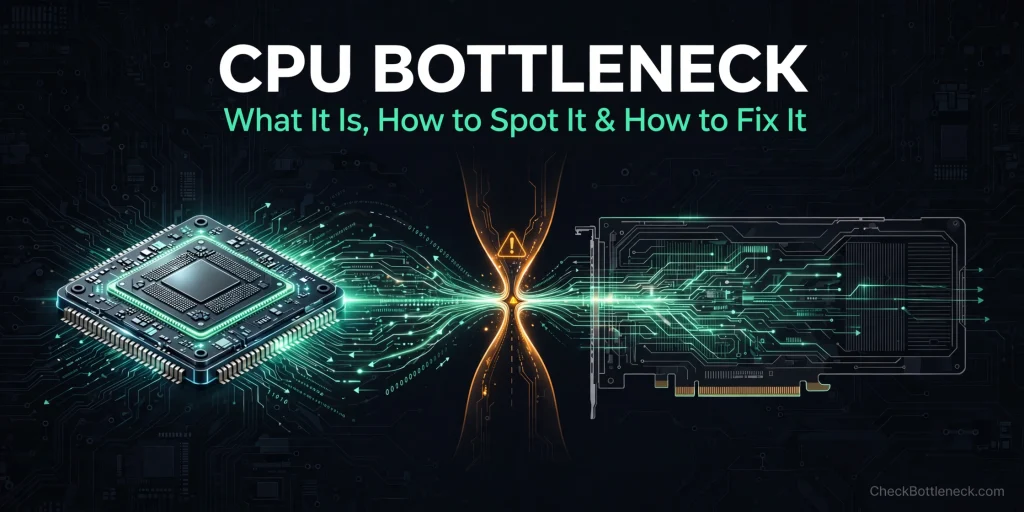
A CPU bottleneck happens when your processor can’t prepare frames fast enough to keep your graphics card busy. Every frame starts on the CPU — game logic, physics, AI, draw calls — and only then does the GPU draw it. When the CPU can’t finish that preparation in time, the GPU burns through its work, runs dry, and sits idle waiting. Frames you paid a graphics card to render never get made. It hits hardest at 1080p, where the GPU finishes frames so quickly the CPU can’t keep pace, and fades at 4K, where each frame takes the GPU long enough that the CPU always has time to get ahead.
Check your exact CPU + GPU combo with our free bottleneck calculator — it weighs your parts at the resolution you actually play, so you know whether the smart move is a CPU upgrade, a GPU upgrade, or nothing at all.
What Is a CPU Bottleneck?
Picture a fast-food kitchen. Your GPU is the grill cook — fast and efficient. Your CPU is the cashier taking orders. If the cashier can only process a fraction of the orders the cook could handle, the kitchen caps out at the cashier’s speed and the cook stands idle. That’s a CPU bottleneck: your processor is the slowest link in the frame-production chain.
Before every frame, the CPU handles game logic and AI, physics, draw calls (instructions telling the GPU what to render), player input, and background tasks like Discord and shader compilation. Only then does the GPU do its part — textures, shadows, lighting, pixel rendering. If the CPU’s preparation takes longer than the GPU’s rendering, the GPU finishes early and waits. Your frame rate is now capped by how fast the CPU turns a scene into draw calls, not by how fast the GPU can draw.
Why Every PC Has a Bottleneck (and That’s Fine)
Here’s what most guides skip: there is no such thing as a 0% bottleneck. Every PC is limited by one part or another at every moment — CPU, GPU, or your monitor’s refresh rate. A “perfectly balanced” system is a myth people chase and calculators pretend to sell.
The real question is never “do I have a bottleneck” — you always do. It’s “is it bad enough that I’d notice, and is it on the part I can afford to fix?” A GPU sitting at 80% while you’re hitting your monitor’s refresh rate is not a problem. Chase the experience, not the number.
7 Signs Your CPU Is Bottlenecking Your GPU
- GPU usage sits well below 95–99% in a demanding game. The most reliable tell. Open an overlay (MSI Afterburner with RTSS, your GPU driver’s overlay, or Win+G) during heavy gameplay. A GPU that is the limit pins near 100%. If it hovers at 60–80% while frame rate disappoints, something upstream — almost always the CPU — is starving it.
- CPU near 100% while the GPU looks relaxed. The classic pairing. But read the diagnostic section before trusting this one alone — total CPU percentage misleads.
- Dropping resolution barely changes frame rate. Going 4K → 1080p should hand you a big FPS jump. If frames barely move, the GPU was never the limit — the CPU was, and it doesn’t care about resolution.
- Stutter in busy scenes. A smooth frame rate that collapses when a horde spawns or you enter a dense city is the classic CPU signature — a CPU limit hits your 1% lows first, spiking frame times even when the average FPS looks fine.
- CPU-heavy genres feel worse than the average suggests. If competitive shooters, strategy, and sims stutter while everything else runs great, that’s a CPU limit showing itself.
- The fans tell the story. GPU fans quiet while the CPU cooler screams — one part works hard, the other waits.
- Lowering graphics settings makes it worse. Dropping texture quality raises the frame rate the GPU could deliver, exposing the CPU ceiling harder. If low settings feel choppier than ultra, the CPU was always the limit.
How to Confirm It in 10 Minutes (Step-by-Step)
Signs are hints; this is the diagnosis. Each step rules something out, and the branches at the end give you a verdict.
- Set up an overlay. Install MSI Afterburner with RivaTuner Statistics Server (free) and show GPU usage, per-thread CPU usage, and frame time. CapFrameX with Intel’s free PresentMon adds “GPU Busy” — how much of each frame the GPU actually worked versus waited.
- Rule out caps first. Check frame caps, V-Sync, refresh-rate limits, and engine-level locks (some games cap at 60 FPS by design). A capped game shows modest usage on both parts with neither being the real problem.
- Play something demanding. Use a heavy scene — open world, big battle, dense city. Menus and loading screens tell you nothing.
- Watch GPU usage. Near 95–99% means the GPU is the limit — stop here, that’s a GPU bottleneck, not a CPU one. Clearly lower with no cap means keep going.
- Check per-thread CPU load, not the total. Total CPU usage averages across all cores and constantly misleads — a game hammering two threads at 100% on a 20-thread CPU can show 10% total in Task Manager while still CPU-limited. Threads pinned at 100% while the GPU waits is confirmation.
- Run the resolution cross-check. Drop render resolution significantly. Frame rate jumps = GPU was the limit. Barely moves = CPU confirmed.
- Read your verdict:
- GPU near 100% → GPU-limited. Upgrade the graphics card if you want more.
- Cap or engine limit found → no hardware problem. Adjust the cap.
- Low GPU usage + pinned threads + resolution change does nothing → confirmed CPU bottleneck. Move to the fixes below.
- Borderline and games feel fine → do nothing. A bottleneck you can’t feel isn’t a problem.
Why Resolution Decides Everything
The CPU’s job per frame barely changes with resolution; the GPU’s changes massively — every extra pixel is more shading and texture work. That difference is the whole story:
- 1080p: the GPU chews through frames so fast it’s constantly waiting on the CPU. This is where CPU bottlenecks live.
- 1440p: the GPU’s per-frame workload roughly doubles, the CPU gets breathing room, and the two even out.
- 4K: each frame is so demanding that the GPU is the constraint almost regardless of CPU — “play at a higher resolution” genuinely hides a CPU limit.
The same two parts bottleneck completely differently by resolution, which is why any bottleneck answer that ignores your resolution is guessing. When you check your combo, use the resolution you actually play at.
Game Type Matters More Than You Think
Your library decides how much a CPU limit hurts. CPU-heavy: competitive shooters, large strategy games, simulators, MMORPGs, dense open worlds — strong single-core performance matters most. GPU-heavy: story-driven games, ray-traced titles, high-resolution visuals.
Almost nobody spells out which settings to touch. When CPU-limited, lowering the wrong settings does nothing:
| Lower THESE for a CPU bottleneck | Leave THESE alone (GPU work) |
|---|---|
| Draw distance / view distance | Texture quality |
| Crowd / NPC density | Anti-aliasing |
| Physics detail | Post-processing |
| Shadow quality and distance | Ray tracing quality |
| Object / clutter density | Resolution scale (raising this helps) |
Dropping CPU-side settings from Ultra to High often recovers frames with almost no visual loss. And counterintuitively, raising resolution or GPU-heavy settings smooths a CPU bottleneck by giving the GPU more work per frame.
9 Ways to Fix or Shrink a CPU Bottleneck
Work through these cheapest to most expensive:
- Raise resolution or graphics settings. More GPU work per frame soaks up time the CPU was making it wait through — 1080p → 1440p can smooth things out for free if your GPU has headroom.
- Lower CPU-heavy settings specifically. Use the table above — draw distance, crowd density, and physics are the big three.
- Enable XMP/EXPO for your RAM. Many systems run RAM at slow default speeds because nobody flipped on the profile in BIOS. Slow or single-channel RAM starves the CPU of data and worsens a CPU limit.
- Close background apps. Dozens of browser tabs, Discord, launchers, and recording software all compete for CPU time.
- Fix thermal throttling. An overheating CPU silently downclocks itself. Check load temperatures — cleaning dust, reapplying thermal paste, or improving airflow can recover performance you already own.
- Update chipset and GPU drivers. Outdated chipset drivers mishandle thread scheduling; outdated GPU drivers add CPU overhead to every frame. Both fixes are free.
- Cap frame rate just above your target. Capping slightly above your monitor’s refresh rate smooths frame times — it won’t raise the ceiling, but it stops the worst stutter.
- Overclock with realistic expectations. If your chip and board support it, a mild overclock buys a little single-thread speed. Expect small gains, not miracles, and only with adequate cooling.
- Upgrade the CPU — meaningfully. If the processor is genuinely too slow for the frame rate you want, a faster CPU is the only true fix, and it must be a real jump: a small step within the same generation won’t move the needle.
For the full walkthrough, see our dedicated how to fix a CPU bottleneck guide.
Before You Buy a New CPU: The Hidden Costs
A CPU is almost never a drop-in purchase:
- Socket compatibility first. The new CPU must fit your motherboard’s socket, and sockets change every couple of generations. Check your board’s CPU support list before ordering, including whether a BIOS update is needed.
- A platform jump means a new motherboard — plus reinstalling or reactivating Windows and rebuilding your setup.
- DDR4 vs DDR5 is a second hidden bill. The two are physically incompatible, so a platform upgrade often forces a RAM replacement too.
- Don’t forget the cooler. Faster chips may need better cooling, and mounting hardware differs between sockets — confirm your cooler has the right bracket.
- Small steps waste money. One tier up within the same aging generation rarely moves the bottleneck enough to feel. Spend on a genuine jump: modern architecture, strong single-thread speed, plenty of cache.
Add it up honestly — CPU + possibly motherboard + possibly RAM + possibly cooler. Sometimes the cheaper path to your target frame rate is a resolution change that shifts load onto the GPU you already own.
Popular Pairings: Which Part Is Probably the Limit?
General guidance — starting points, not verdicts, since resolution, settings, and the game move the answer. Run your exact pairing through the calculator.
| CPU | GPU | At 1080p | At 1440p |
|---|---|---|---|
| Intel i5-9400F | RTX 4070 | CPU-limited | Mostly CPU-limited |
| Ryzen 5 3600 | RTX 3060 | Balanced to slightly CPU-limited | Balanced |
| Ryzen 5 5600X | RTX 4070 | Slightly CPU-limited | Balanced |
| Intel i5-12400F | RTX 3080 | Slightly CPU-limited | Balanced |
| Intel i7-13700K | RTX 4090 | CPU-limited (extreme GPU) | Balanced to slightly CPU-limited |
| Ryzen 7 7800X3D | RTX 4080 | Balanced | GPU-limited |
Deep dives on popular combos: RTX 4070 + Ryzen 5 5600X, RTX 3080 + i5-12400F, and RTX 4090 + i7-13700K.
CPU Bottlenecks Outside Gaming
- Streaming. Gaming while encoding with OBS on the same CPU (especially software x264) is one of the heaviest consumer workloads. Dropped stream frames with a fine-looking game is a textbook CPU limit — switch to your GPU’s hardware encoder (NVENC/AMF) to offload it.
- Emulation. Emulators like RPCS3 and Yuzu translate console instructions in real time and depend brutally on single-thread speed. A CPU that games fine can still choke here.
- VR. A missed frame deadline in VR isn’t just stutter — it’s motion sickness. A marginal CPU limit you’d never notice on a monitor becomes very noticeable in a headset.
- Laptops. Laptop CPUs live under strict TDP power limits and short boost durations — a chip boosting hard for seconds then throttling creates a bottleneck that appears and disappears with thermals. If you’re on a laptop, check your laptop pairing specifically; desktop rules don’t fully apply.
Myths That Cost You Money
- “Any bottleneck is bad.” No. A bottleneck you can’t feel is not a problem — if you’re hitting your target frame rate, stop optimizing.
- “A calculator gave me 12%, so I must upgrade.” A single percentage with no resolution attached is close to meaningless — see whether bottleneck calculators are accurate.
- “More cores fix it.” Often not. Game frame prep leans on single-thread speed — fewer faster cores frequently beat more slower ones for gaming.
- “Future-proof with an oversized GPU.” A high-end card on a weak CPU performs closer to a cheaper card until the CPU is upgraded. The extra performance sits unused, depreciating.
- “I need a perfectly balanced build.” Impossible target — build for the resolution and frame rate you want. Full comparison: CPU vs GPU bottleneck.
Check Your Exact Combo Before You Spend
Test your CPU and GPU pairing in our free bottleneck calculator — try different resolutions, compare upgrade paths side by side, and find out whether your money belongs in a new CPU, a new GPU, or your pocket.
CPU Bottleneck FAQ
How do I know if my CPU is bottlenecking my GPU?
Watch GPU utilization with a free overlay like MSI Afterburner during a demanding game. If the GPU sits clearly below 95–99% with no frame cap while frame rate disappoints, the CPU is holding it back. Confirm with the resolution cross-check: if dropping resolution barely changes FPS, the CPU was the limit.
Can a CPU bottleneck damage my GPU?
No. A bottleneck only limits performance — it doesn’t physically damage any component. An underused GPU runs cooler and quieter. The only “damage” is to your wallet: performance you paid for going unused.
Does a higher resolution reduce a CPU bottleneck?
Effectively, yes. The CPU’s per-frame work barely changes with resolution while the GPU’s grows fast, so at higher resolutions the GPU becomes the limit and the CPU ceiling is hidden. A genuine free mitigation if your GPU has headroom — not a fix, but often enough.
Can I fix a CPU bottleneck without upgrading my CPU?
You can shrink it: raise resolution or GPU-heavy settings, lower CPU-heavy settings (draw distance, crowd density, physics), enable XMP/EXPO, close background apps, fix thermal throttling, update drivers. But if the CPU is genuinely too slow for the frame rate you want, a faster CPU is the only real fix.
Will more CPU cores fix a CPU bottleneck?
Not necessarily. Frame preparation leans heavily on single-thread speed — much of game logic runs in sequence on one core. Fewer faster cores often beat more slower cores for gaming. Extra cores help streaming, background apps, and heavily threaded titles, not a per-frame prep limit.
Should I trust bottleneck calculator percentages?
As guidance, not truth. A single percentage with no resolution, game, or settings attached can’t represent real-world performance — the same pairing bottlenecks differently at 1080p versus 4K. A good calculator factors in your resolution and explains its reasoning; sanity-check against real monitoring afterward.
Can slow RAM cause a CPU bottleneck?
Yes. Slow or single-channel RAM starves the CPU of data, worsening a CPU limit. Check that RAM runs at its advertised speed (enable XMP/EXPO in BIOS) and in dual-channel mode — one of the most common free fixes.
Is a small CPU bottleneck bad?
No. Every system is limited by something at all times — a 0% bottleneck doesn’t exist. A small CPU-side limit you can’t feel isn’t a problem. It only matters when it drags frame rate below what you want or below your monitor’s refresh rate.