3D Rendering Bottleneck Calculator: Find the Exact Part Slowing Your Renders
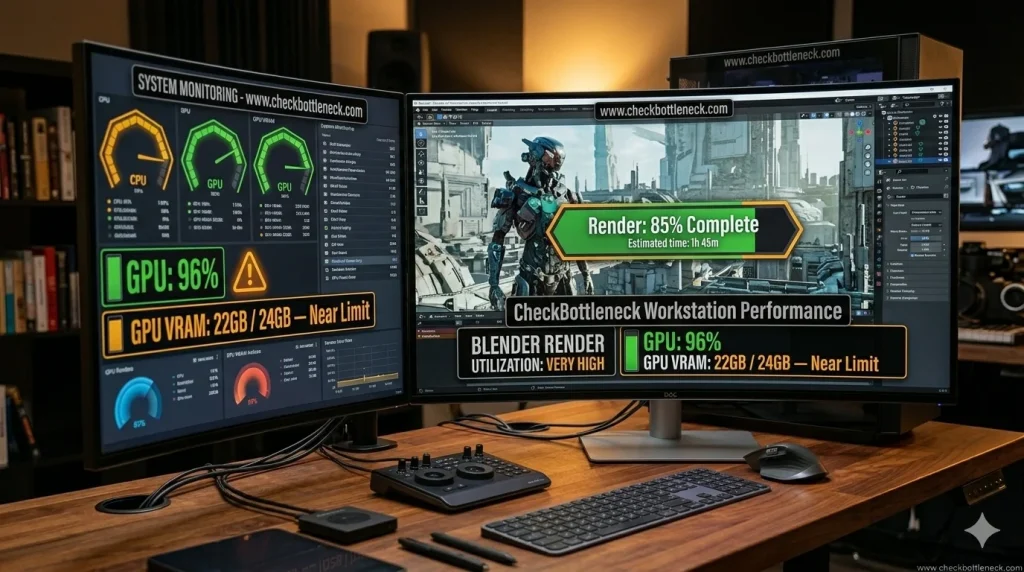
Your 3D rendering bottleneck is not a gaming bottleneck — and treating it like one is how artists buy the wrong upgrade. In games, a bottleneck costs FPS. In rendering, it costs time: crashed GPU renders, a stuttering viewport, or frames that take hours. Which component holds you back depends almost entirely on your rendering engine — Octane hits a completely different wall than Arnold. This guide shows you how to find the exact part slowing your renders, fix what you can in software, and upgrade only what matters.
Check your system first: run your CPU and GPU through our free 3D rendering bottleneck calculator — the sections below show how to interpret the result for render workloads.
How a 3D Rendering Bottleneck Differs From a Gaming Bottleneck
A gaming bottleneck is about frame delivery: the CPU prepares frames, the GPU draws them, and the slower one caps FPS. A rendering bottleneck is about throughput and memory — the limit is one of three things: the GPU running out of VRAM, the render device (CPU or GPU) lacking compute power, or the system being too slow to prepare and feed the scene.
That is why gaming advice misleads render artists: a pairing balanced for 1440p gaming can still be badly bottlenecked for rendering if the GPU has 8GB of VRAM and your scenes need 14GB. For the general theory, read what a CPU bottleneck is — then apply the method below.
How to Find Your 3D Rendering Bottleneck in 5 Minutes
Do not guess — watch the right numbers during a real render. Open Task Manager or MSI Afterburner, enable the GPU, GPU-memory, and CPU graphs, and render a typical project past the first minute (renders have phases; you need the steady state, not scene loading). In Blender, check the status-bar statistics, then match the pattern:
| What you observe | Your bottleneck | What to do |
|---|---|---|
| Render fails with an out-of-memory error, or Blender silently drops to CPU rendering | VRAM capacity | Shrink scene memory or get more VRAM |
| GPU pinned near 100% the whole render, CPU mostly idle | GPU compute | Faster GPU, lower samples + denoising, or a render farm |
| Long “preparing / synchronizing” phase before rendering starts | CPU / RAM (scene prep) | More cores, more/faster RAM, faster asset storage |
| Viewport stutters while modeling, but final renders are fine | Viewport GPU | Separate issue — see the viewport section |
| Simulations, physics bakes, cloth/hair crawl | CPU core count | More cores; this work rarely touches the GPU |
VRAM: The #1 Bottleneck in GPU Rendering
In GPU rendering, VRAM capacity fails before GPU speed does. Octane, Redshift, Cycles GPU, and V-Ray GPU need the entire scene — geometry, textures, lighting, acceleration structures — in graphics memory. Exceed it and Octane/Redshift typically throw an out-of-memory error and fail outright, while Blender falls back to dramatically slower CPU rendering.
This is the bottleneck artists discover the hard way: a fast 8GB card that cannot finish a production scene an older 12GB card completes easily. Crashes or slowdowns on complex scenes only means a memory problem, not a speed problem. See also our GPU bottleneck explainer.
How much VRAM do you actually need?
Size for your heaviest scene, not your average one: 8GB for learning and small renders; 12GB for most arch-viz and motion graphics; 16GB for complex environments and animation; 24GB+ for 8K textures and volumetrics. Before buying your way out, shrink the scene: compress textures, instance repeated objects, lower background subdivision, and split heavy scenes into render layers.
CPU vs GPU vs Hybrid Rendering: Which One Are You Using?
Identify your engine first — it decides where your money goes.
GPU rendering engines
Octane, Redshift, V-Ray GPU, and Cycles in GPU/OptiX mode do the heavy lifting on the graphics card: GPU compute and VRAM deserve the biggest share of your budget. The CPU still prepares scene data and runs simulations — a weak one leaves a strong GPU idling. Beyond a solid 16-core chip, extra CPU cores are a poor investment for GPU-only pipelines.
CPU rendering engines
Arnold (CPU), Corona, and Houdini Karma (CPU) delegate everything to the processor: they scale with core count, have no VRAM ceiling (they use system RAM), and stay stable on long unattended jobs — which is why they persist in film and VFX. Here the GPU is nearly irrelevant to final render speed; spend on cores, memory channels, and RAM.
Hybrid rendering
Blender Cycles and V-Ray can use CPU and GPU simultaneously, so balance matters: a high-core-count CPU with a strong GPU beats a lopsided build either way. Caveat — the GPU usually finishes its share much faster, so the practical gain over GPU-only rendering is often modest.
Viewport Lag vs Slow Final Renders: Two Different Bottlenecks
Artists conflate these constantly. Viewport performance — orbiting, sculpting, scrubbing timelines — runs on the GPU via OpenGL/DirectX. If the viewport stutters but final renders are fine, your render device is not the problem: simplify viewport subdivision, use bounding-box display for heavy objects, and keep display textures at preview resolution.
Final render speed belongs entirely to the engine and follows the CPU/GPU/hybrid logic above. A faster render GPU will not fix a viewport choking on a 4-million-poly sculpt. Diagnose them separately.
Renderer Settings That Fake a Hardware Bottleneck
Rule these out before spending anything — each mimics a hardware bottleneck exactly:
- Wrong render device. Blender: Preferences → System → enable OptiX (NVIDIA), tick your GPU, untick the CPU. Rendering on “CPU” with an RTX card installed is the most common fake bottleneck there is.
- No denoising + excessive samples. OptiX AI denoising lets you cut sample counts substantially with no visible loss on clean scenes.
- Out-of-core settings. Redshift can spill to system RAM past the VRAM limit — far slower, but it finishes instead of crashing. Know whether your engine is failing or spilling.
- Tile size and persistent data. Smaller tiles generally suit GPUs; persistent data in Cycles avoids re-uploading static scene data between animation frames.
- Stale drivers. NVIDIA Studio drivers are validated against DCC apps — a driver regression after an update can masquerade as a hardware slowdown.
Hardware Tiers for 3D Rendering in 2026
Guidance is qualitative — render times vary by engine, scene, and settings.
Starter: students and hobbyists
A 6–8 core CPU (Ryzen 5 5600X / i5-12400F class) with a 12GB VRAM GPU such as the RTX 3060 — at this tier the 12GB matters more than raw speed. Add 32GB RAM and an NVMe SSD. Handles learning, product renders, and moderate scenes.
Professional: freelance artists
A 16-core CPU (Ryzen 9 7950X/9950X or Core Ultra 9 class), a 16GB GPU (RTX 4080/5080 class), and 64GB of DDR5. The comfortable professional envelope: most scenes fit in VRAM, scene prep is fast, and hybrid rendering has both halves well fed. A pairing like the RTX 4090 with an i7-13700K shows what a balanced high-end rendering build looks like.
Studio production
Threadripper PRO / Xeon platforms, 128–256GB ECC RAM, and 24–32GB VRAM GPUs (RTX 4090/5090 class) or RTX PRO cards. Multi-GPU enters here — with an engine nuance: Octane and Redshift pool VRAM across cards, while V-Ray GPU prefers one large card. Scaling is less than linear, so buy the second GPU for its VRAM pool, not for double speed.
RAM, Storage & Cooling: The Silent Bottlenecks
RAM: 32GB is the entry point, 64GB the professional comfort zone, 128GB+ the standard for complex environments and simulation-heavy work. Exhausted RAM means OS paging to disk, and everything — scene prep, CPU rendering, asset loading — slows catastrophically. Fill all memory channels your platform offers.
Storage: the most underestimated rendering component. OS and DCC software on one fast NVMe drive, assets and 8K textures on a second (slow drives stall the engine while it loads data into VRAM), simulation caches on their own dedicated drive.
Cooling: renderers pin hardware at 100% load for hours, unlike gaming’s bursty loads. Inadequate cooling causes thermal throttling that looks exactly like a hardware bottleneck — progressively slowing renders on long jobs.
Run Your System Through the Free Bottleneck Calculator
One translation matters: most calculators express results as a percentage built around gaming workloads. For rendering, read it this way — a GPU bottleneck means your render device is the limit (upgrade GPU tier/VRAM, or cut samples). A CPU bottleneck on a CPU engine means more cores; on a GPU engine it means the CPU is starving the GPU during scene prep. Under ~10% the pairing is balanced; above ~20% the named component is genuinely holding your renders back. For fixes, see how to fix a GPU bottleneck and how to fix a CPU bottleneck.
Ready to check? Run your exact CPU and GPU through our free bottleneck calculator, then match the result against the symptom table above to plan your next upgrade.
Frequently Asked Questions
Is 3D rendering CPU or GPU intensive?
It depends on the engine. GPU engines (Octane, Redshift, Cycles in GPU mode) are GPU-intensive — the card handles ray tracing and shading. CPU engines (Arnold CPU, Corona, Karma) are entirely CPU-intensive and scale with core count. Either way, the CPU handles scene preparation, geometry, and simulations.
How much VRAM do I need for 3D rendering?
8GB for learning and small scenes; 12GB for most arch-viz and motion graphics; 16GB for complex environments and animation; 24GB+ for 8K textures and volumetrics. Size for your heaviest scene — VRAM exhaustion crashes GPU renders outright.
Can a weak CPU bottleneck GPU rendering?
Yes. The CPU prepares scene data, processes geometry, and runs simulations before the GPU starts. If it cannot feed data fast enough, the GPU idles and render performance drops.
Why does my GPU render crash on large scenes?
The scene exceeded your GPU’s VRAM. GPU renderers must hold the entire scene in graphics memory: Octane and Redshift fail with an out-of-memory error, while Blender may fall back to much slower CPU rendering. Reduce scene memory (texture compression, instancing, lower subdivision, render layers) or move to a GPU with more VRAM.
Is one powerful GPU or two cheaper GPUs better for rendering?
It depends on the engine. Octane and Redshift pool VRAM across cards, making two cards attractive; V-Ray GPU prefers a single large card. Multi-GPU scaling is less than linear, so one powerful GPU is simpler and better value unless you need the combined VRAM pool.
How do I know if my RAM is bottlenecking my renders?
Watch for extremely long scene loading, an unresponsive system, or heavy disk activity during renders. When RAM is exhausted the OS pages to disk and everything slows drastically. 32GB is the entry point, 64GB the professional comfort zone, 128GB+ the standard for complex production scenes.
Related: our video editing bottleneck calculator covers Blender Eevee and DaVinci Resolve pipelines built on the same hardware logic.