Video Editing Bottleneck Calculator — Find & Fix CPU, GPU, RAM and Storage Bottlenecks
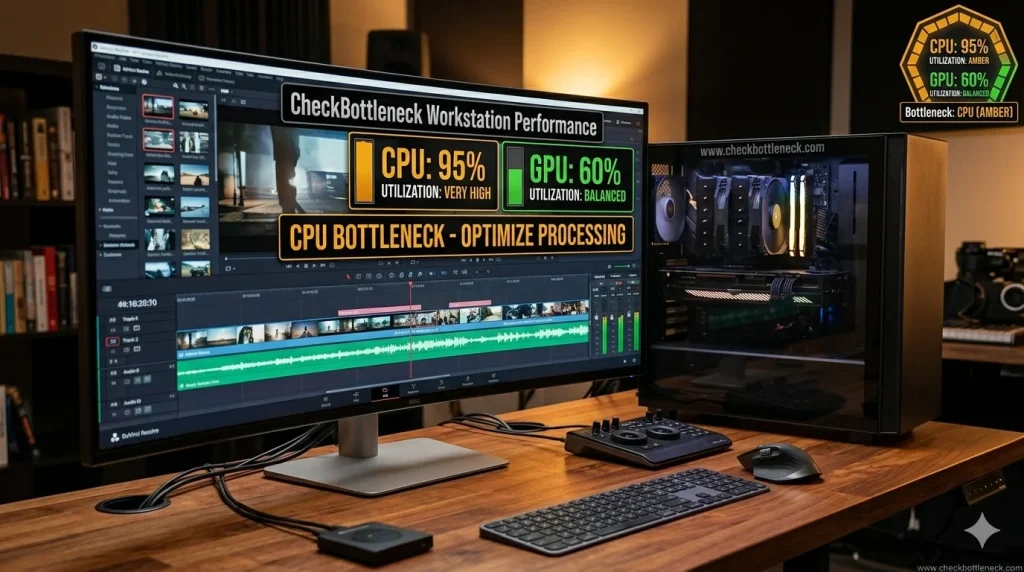
A video editing bottleneck looks completely different from a gaming bottleneck, and most PC guides treat them the same — which leads to expensive wrong upgrades. Unlike games, which are mostly GPU-bound, video editing spreads the load across your CPU, GPU, RAM, and storage at the same time, so a bottleneck in any single component can drag down your whole workflow.
This guide shows where your video editing bottleneck is coming from, how it changes between Premiere Pro, DaVinci Resolve, and After Effects, and which fix or upgrade will actually solve it — without buying parts you do not need.
Check your exact components against real editing workloads: run our free bottleneck calculator and select the Video Editing workload profile. It weights your CPU, GPU, RAM, and storage the way Premiere Pro, DaVinci Resolve, and After Effects actually use them.
Why Video Editing Bottlenecks Differ From Gaming
In gaming, a faster GPU usually means more frames per second, and the CPU mainly needs to keep up. Video editing has no single hero component. Your CPU handles timeline playback logic, effects processing, decoding your camera footage, and software encoding during export. Your GPU accelerates color grading, noise reduction, and hardware encoding at export. Your RAM determines how many frames can sit in memory before the system falls back to slow disk caching. Your storage decides whether high-bitrate footage streams smoothly or stutters during scrubbing.
This is why classic CPU bottleneck advice from gaming forums misleads editors. In an editing timeline, the bottleneck moves around: the CPU while decoding H.265 footage, the GPU while grading in Resolve, the RAM while previewing in After Effects, the drive while scrubbing a 4K multicam timeline. Upgrading only the GPU when the real limit is the CPU — or the codec, or the storage — changes nothing.
How to Find Your Real Bottleneck Before Spending Money
Editing bottleneck symptoms are specific — diagnose before you price anything:
- Pick a 10–20 second timeline range that stutters every time you play it. Replay the same range after every change — the change that fixes it tells you where the pressure is.
- Open Task Manager (Performance tab on Windows, Activity Monitor on Mac) and watch CPU usage plus the GPU’s Video Decode and Video Encode graphs during playback.
- Note which component is maxed out. CPU pinned near 100% with an idle GPU means the processor is doing work the GPU could take over. Disk pinned at 100% while scrubbing means storage is the limit.
- In Premiere Pro, enable the Dropped Frame Indicator (the “+” menu under the Program Monitor) to turn lag into a measurable count.
Symptom-to-Component Quick Table
| Symptom | Likely bottleneck | Check first |
|---|---|---|
| Stuttery scrubbing, smooth once playing | Storage speed or codec decode | Drive type; footage codec |
| Slow exports, timeline plays fine | CPU encode or encoder settings | Hardware encoding toggle; CPU cores |
| Lag only with grades, noise reduction, or effects | GPU compute or VRAM | GPU acceleration enabled; VRAM capacity |
| RAM Preview crawls; sluggish with many layers | RAM capacity or bandwidth | Total RAM; dual-channel; disk caching |
Bottleneck by Application
Adobe Premiere Pro — CPU First
Premiere Pro leans on the CPU for timeline playback, most effects, and software encoding. More cores mean snappier scrubbing and faster exports when hardware encoding is off. The GPU accelerates a specific set of effects and takes over encoding when hardware encoding is enabled — but the CPU remains the primary limit in most Premiere workflows. If the calculator flags a CPU limit, fixing that CPU bottleneck helps Premiere more than any graphics card would.
One often-missed detail: Intel chips with integrated graphics unlock Quick Sync, which hardware-decodes H.264 and H.265 and takes a huge load off the CPU. “F”-series Intel chips (like the i5-12400F) lack integrated graphics and therefore lack Quick Sync — a real consideration if Premiere is your main app.
DaVinci Resolve — GPU and VRAM First
Resolve offloads color grading, noise reduction, Fusion effects, and most rendering to the GPU’s compute pipeline. Here a GPU bottleneck is the normal state of affairs, and VRAM capacity is critical — running out of video memory stalls or crashes a session no matter how fast the card is. Plan roughly 8GB of VRAM for 1080p work, 12GB for 4K timelines with grading, and 16GB or more for 8K or heavy Fusion compositions.
Also note the edition gap: DaVinci Resolve Studio unlocks hardware-accelerated H.264/H.265 decoding and encoding, while the free edition falls back to the CPU. If Task Manager shows your CPU maxed out during H.264 playback while the GPU sits idle, a Studio license — not new hardware — may be the actual fix.
After Effects — CPU and RAM First
After Effects barely leans on the GPU. RAM Preview speed is almost entirely a function of CPU performance and RAM bandwidth. Prioritize a strong multi-core CPU and 64GB of RAM in dual-channel before thinking about the graphics card. If you also do motion graphics and 3D, our 3D rendering bottleneck calculator covers the GPU-heavy side of that workflow.
The Codec Bottleneck Most Guides Ignore
Here is the bottleneck almost no calculator article mentions: your footage codec. H.264 and H.265 (HEVC) from cameras, drones, and phones use long-GOP compression, where each frame is reconstructed from its neighbors. That decode work lands on the CPU unless hardware decoding takes it over. H.265 4K footage can stutter on a powerful PC that plays back ProRes flawlessly.
The single biggest free improvement is transcoding to an edit-friendly intraframe format: generate proxies or optimized media in ProRes or DNxHR. It costs disk space, not money. Pair it with hardware decode (NVDEC on NVIDIA, Quick Sync on Intel, AMF on AMD) and hardware encoding at export (NVENC/Quick Sync/AMF), which offload the most expensive steps from the CPU.
Storage plays into the same story. Keep media cache and scratch disks on your fastest NVMe drive, ideally separate from your OS drive. Editing directly from a slow external drive or an old HDD is a classic hidden bottleneck: dropped frames and endless proxy rebuilding no matter how good the CPU and GPU are.
Hardware Tiers by Resolution
| Workload | CPU | GPU (VRAM) | RAM | Storage |
|---|---|---|---|---|
| 1080p / short-form | 6-core (Ryzen 5 5600X / i5-12400F class) | RTX 3060 12GB / RX 6600 XT class | 32GB DDR4 dual-channel | NVMe Gen3 SSD |
| 4K professional | 8–12 cores (Ryzen 7 7700X / i7-13700K class) | RTX 4070 12GB / RX 7700 XT class | 64GB DDR4/DDR5 dual-channel | NVMe Gen4 SSD, 2TB |
| 8K / HDR production | 16+ cores (Ryzen 9 9950X class) | RTX 5080 16GB+ class | 128GB DDR5 dual-channel | Fast NVMe, separate cache drive |
Premiere builders can lean toward CPU and put the savings into RAM and storage, while Resolve builders should prioritize the GPU and its VRAM.
Free Fixes to Try Before Upgrading
- Generate proxies or optimized media in ProRes or DNxHR for H.264/H.265 footage — the highest-impact free fix.
- Cut at half or quarter timeline proxy resolution, then return to full resolution for review and delivery.
- Premiere Pro: set Project Settings → Renderer to Mercury Playback Engine GPU Acceleration; enable hardware-accelerated decoding and encoding in Preferences → General.
- DaVinci Resolve: check Preferences → System → Memory and GPU so the right GPU and processing mode (CUDA/Metal/OpenCL) are selected; use render cache only on heavy sections.
- Install NVIDIA Studio drivers instead of Game Ready drivers — they are validated against creative apps.
- Move media cache and scratch to your fastest NVMe drive, separate from the OS drive; close sync clients and background apps while editing.
- Update your editing app — recent releases shipped meaningful decode and playback improvements, especially for H.265.
- On a laptop, check thermals and power profiles: heat throttling mimics a hardware bottleneck exactly. Our laptop bottleneck calculator accounts for mobile power limits.
Video Editing Optimization Checklist
Run through this once per machine and once per project type — it catches configuration mistakes that masquerade as bottlenecks:
- Premiere Pro: Renderer is Mercury Playback Engine GPU Acceleration (not Software Only); hardware-accelerated decoding and encoding enabled in Preferences → General.
- Premiere Pro: media cache points to the fastest NVMe drive, not the OS drive; memory prefs leave enough RAM reserved for the OS.
- DaVinci Resolve: Preferences → System → Memory and GPU → processing mode matches your card and the correct GPU is selected (VRAM does not pool across cards — two 8GB cards give 8GB usable, not 16GB).
- DaVinci Resolve: optimized media set to ProRes 422 Proxy or DNxHR LB for long-GOP source footage.
- RAM runs in dual-channel with XMP/EXPO enabled in BIOS — single-channel or JEDEC-speed RAM quietly halves memory bandwidth.
- Project media, cache, and exports live on NVMe storage; GPU drivers are the Studio/production branch, updated on a schedule.
Frequently Asked Questions
Is CPU or GPU more important for video editing?
It depends on the app. For Premiere Pro and After Effects, the CPU (plus plenty of RAM) matters most. For DaVinci Resolve, the GPU and its VRAM matter most. Check your own system with our free bottleneck calculator using the Video Editing workload profile rather than guessing.
How much RAM do I need for 4K video editing?
32GB is the practical minimum for 4K timelines — with less, the app spills into disk caching and scrubbing turns sluggish. 64GB is the comfortable tier for layered timelines; heavy Resolve/Fusion work benefits from more.
How much VRAM do I need for 4K video editing?
For DaVinci Resolve, 12GB is the comfortable minimum for 4K timelines with grading; 8GB handles lighter grades. When VRAM runs out, the session stalls regardless of GPU speed — capacity, not just chip speed, is the limit.
Why does my 4K timeline lag even though my PC is powerful?
The usual causes are not raw hardware weakness: H.264/H.265 footage decoding on the CPU, GPU acceleration disabled in the app’s settings, media cache on a slow drive, or the free edition of Resolve doing CPU decode instead of hardware decode. Work through the free fixes above before buying new parts.
Can integrated graphics handle 4K video editing?
For light 4K cutting with proxies, modern integrated graphics can cope — and Intel’s integrated GPU provides Quick Sync hardware decoding, which genuinely helps. But complex grades, noise reduction, and native H.265 4K timelines overwhelm an iGPU; a dedicated GPU with adequate VRAM is the floor for professional 4K work.
Does a better GPU make video exports faster?
Only if the export path uses the GPU. Hardware encoding (NVENC, Quick Sync, AMF) offloads encoding to the GPU and beats CPU-only software encoding. But decoding, effects, and many export settings stay CPU-bound — a balanced system, verified with a CPU bottleneck calculator check, beats a lopsided one.
Stop guessing which part to upgrade. Run the free bottleneck calculator with the Video Editing workload profile, enter your exact CPU, GPU, RAM, and storage, and get an editing-specific answer.